
Step by step how to unfreeze a macbook
There is nothing more terrifying than watching your screen seize up right before a deadline, leaving you helpless and staring at the dreaded spinning beach ball of death.
It creates a sudden panic that sends you scrambling for answers on how do you unfreeze a MacBook before you lose hours of unsaved work. We have all faced this digital nightmare, but the good news is that the solution is usually simpler than you think.
I understand the anxiety of a frozen screen, which is why I have compiled the most effective, battle-tested methods to get you back on track instantly. You don’t need to be a computer genius to fix this; you just need the right strategy and a cool head.
In this comprehensive guide, we will walk through everything from simple keyboard shortcuts to deeper system resets that resolve underlying hardware communication issues.
By the time you finish reading, you will not only have a working laptop but also the knowledge to prevent this from happening again. Take a deep breath, stop clicking wildly, and let’s get your Mac running smoothly again.
The main reasons why your Mac freezes
Before we dive into the fixes, it is crucial to understand the enemy. Most freezes aren’t random; they are symptoms of an underlying struggle within your machine. Usually, this happens because the system runs out of Random Access Memory (RAM), the software encounters a coding loop it cannot escape, or the hard drive is too full to operate temporary files.
- Software Conflicts: Old apps clashing with new macOS updates.
- Resource Hoarding: Too many browser tabs or heavy apps open at once.
- Hardware Fatigue: Overheating or failing drive sectors.
Force quitting a frozen or unresponsive application
This is your first line of defense. Often, the entire computer isn’t frozen, just one greedy application that refuses to let go of the processor’s attention.
Step-by-step:
- Press Command + Option + Esc simultaneously on your keyboard.
- A window titled “Force Quit Applications” will appear.
- Select the app that says “(not responding)” next to it.
- Click the blue Force Quit button and confirm.
Close all applications when many are running simultaneously
If your Mac is sluggish or freezing intermittently, it is likely gasping for air. Having twenty apps open splits your processor’s attention, leading to system instability.
Step-by-step:
- Look at your Dock (usually at the bottom of the screen).
- Identify apps with a small black dot beneath them (indicating they are open).
- Right-click (or Control-click) on the app icon.
- Select Quit. Repeat this for every app you are not currently using.

How do you unfreeze a MacBook by Restarting the System
Sometimes, the software gridlock is so severe that you cannot access menus or move the mouse. In these cases, a hard restart is the only way to flush the memory and start fresh.
Step-by-step:
- Locate the Power button (or Touch ID button) on your keyboard.
- Press and hold it down for approximately 5 to 10 seconds.
- Wait until the screen goes completely black and the fans stop whirring.
- Wait another 10 seconds, then press the Power button again to boot up.
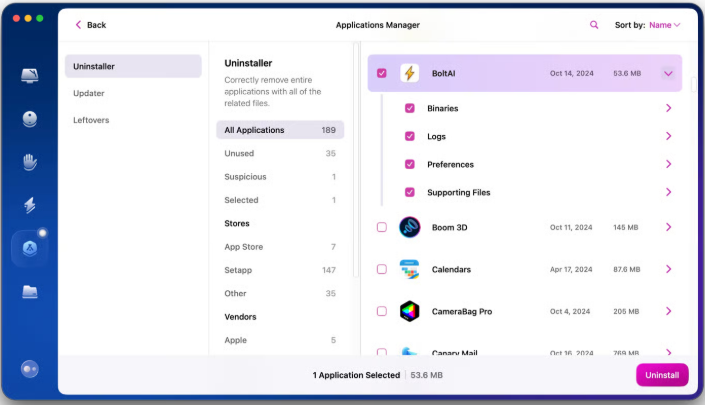
Uninstall unresponsive apps
If a specific app freezes your Mac every time you open it, that app is a liability. It may be corrupted or incompatible with your current operating system version.
Step-by-step:
- Open Finder and navigate to the Applications folder.
- Locate the problematic app.
- Drag the app icon to the Trash bin in your Dock.
- Right-click the Trash bin and select Empty Trash to remove it permanently.
Stop demanding processes
Sometimes the culprit isn’t a visible window, but a background process eating up your CPU. Activity Monitor is the “X-ray” machine that reveals these invisible resource hogs.
Step-by-step:
- Press Command + Space to open Spotlight Search and type “Activity Monitor.”
- Open the app and click the % CPU column to sort by usage.
- Identify any process using an unusually high percentage (e.g., 90%+).
- Highlight the process and click the X icon at the top of the window to stop it.

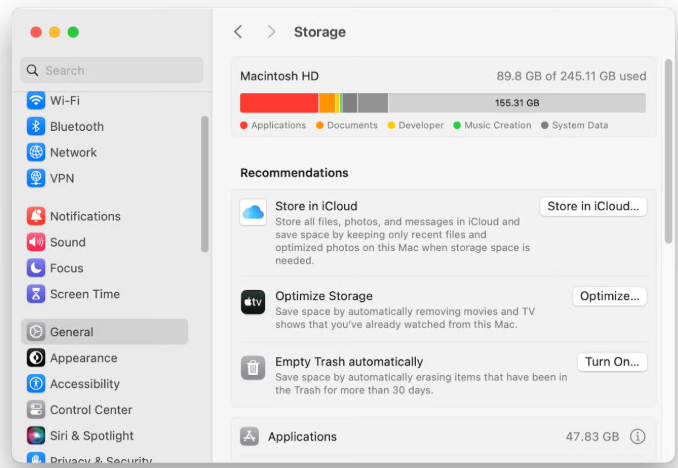
Free up disk space
A Mac needs breathing room. If your hard drive is nearly full, the operating system cannot create the temporary “swap” files it needs to run smoothly, leading to freezes.
Step-by-step:
- Click the Apple Menu () > System Settings (or System Preferences).
- Go to General > Storage.
- Review the recommendations. Delete large files, empty the trash, or move photos to an external drive until you have at least 15-20GB of free space.
Clean your workspace
Believe it or not, a cluttered desktop screen consumes RAM because the Mac must render a preview for every single icon constantly.
Step-by-step:
- Create a single folder on your desktop named “Old Desktop Files.”
- Highlight all loose screenshots, documents, and images scattered on your screen.
- Drag them all into that single folder.
- Restart your computer to regain the memory previously used for icon rendering.

Repair the disk using Disk Utility
Corruption in the file system can cause the Mac to lose track of data, resulting in a freeze. Apple includes a built-in doctor for your drive called Disk Utility.
Step-by-step:
- Open Finder > Applications > Utilities > Disk Utility.
- Select your main hard drive (usually named “Macintosh HD”) from the sidebar.
- Click the First Aid button (stethoscope icon) at the top.
- Click Run and wait for the system to scan and repair errors.

Restart the SMC (System Management Controller)
The SMC controls low-level functions like battery management, thermal management, and sensors. If these go haywire, your Mac freezes to protect itself. (Note: This applies to Intel Macs; Apple Silicon handles this automatically via restart).
Step-by-step (Intel Macs with T2 chip):
- Shut down your Mac.
- Press and hold Control (left) + Option (left) + Shift (right) for 7 seconds.
- Keep holding them and press the Power button as well.
- Hold all four keys for another 7 seconds, then release and turn on the Mac.
Reset NVRAM
Non-Volatile Random Access Memory stores settings like sound volume and display resolution. Corrupted NVRAM can cause boot issues and freezing.
Step-by-step (Intel Macs):
- Shut down your Mac.
- Turn it on and immediately press and hold Option + Command + P + R.
- Hold these keys for about 20 seconds.
- Release the keys when you hear the startup sound for the second time or see the Apple logo reappear.
Run Apple Diagnostics
If software fixes aren’t working, you may have a hardware failure. Apple Diagnostics tests your logic board, RAM, and battery for physical defects.
Step-by-step (Apple Silicon):
- Shut down the Mac.
- Press and hold the power button until you see “Loading startup options.”
- Press Command + D.
Step-by-step (Intel): - Restart and immediately hold the D key until a progress bar appears.
Try running a virus scan
While rare on Macs, malware does exist. Crypto-miners can infect your Mac and use 100% of your processing power in the background, causing a total freeze.
Step-by-step:
- Download a reputable scanner like Malwarebytes (free version usually suffices).
- Install the software and grant necessary permissions.
- Click Scan and wait for the results.
- Quarantine or delete any threats found.
Proceeding safely and responsibly
Once you have unfrozen your Mac, the most important step is ensuring you don’t lose data in the future. A frozen Mac is a warning shot; do not ignore it.
Step-by-step:
- Connect an external hard drive to your Mac.
- Go to System Settings > General > Time Machine.
- Select the external drive as your backup disk.
- Allow the backup to complete immediately to secure your files.
Conclusion
There is a unique sense of relief when that frozen screen finally gives way to a responsive cursor, isn’t there? It’s the feeling of dodging a bullet. By now, you shouldn’t just be asking “how do you unfreeze a MacBook,” but rather feeling empowered that you can handle it yourself.
Technology is a tool, and like any tool, it requires maintenance and a steady hand. Don’t wait for the next crash to take action—implement these habits today. Keep your drive clean, your apps updated, and your backups current. You’ve conquered the freeze; now go back to conquering your work.
READ ALSO: how to factory reset macbook pro without password
Frequently Asked Questions: Unfreezing Your Mac
How do I unfreeze my MacBook screen?
The quickest way to unfreeze your screen is to check if you can move the mouse. If yes, press Command + Option + Esc to open the Force Quit menu and shut down the unresponsive app. If the screen is completely locked, press and hold the Power button (or Touch ID) for 10 seconds until the Mac turns off, then restart it.
Why is my Mac frozen and I can’t click anything?
This usually happens because the processor (CPU) is overloaded or the system has run out of RAM (memory). Think of it like a traffic jam; there is too much data trying to move through, and the “cars” (your clicks) can’t move. It can also be caused by a corrupted background process that has locked the user interface.
How do I force restart an unresponsive MacBook?
To perform a hard reset, locate the Power button (top right of the keyboard). Press and hold it down firmly for about 10 seconds. The screen will go black, and the fans will cut power. Wait a few seconds, then press the Power button again to boot up normally.
How long should I wait for a Mac to unfreeze?
Patience is a virtue, but only to a point. If you see the spinning beach ball, wait about 5 to 10 minutes. The system might just be processing a heavy task. If it remains frozen longer than that, or if the cursor doesn’t move at all for more than a minute, it’s time to intervene.
How to force quit a frozen screen?
If a specific app is filling the screen and won’t close, press Command + Option + Esc. Select the app and click Force Quit. If the entire screen is frozen and that shortcut doesn’t work, your only option is the hard restart using the physical Power button.
Why is my MacBook not letting me press anything?
If neither the trackpad nor keyboard responds, you are likely experiencing a total system freeze (sometimes called a Kernel Panic, though those usually shut the machine down). This means the operating system has stopped communicating with the hardware. It could also indicate a Bluetooth disconnection if you are using wireless peripherals.
How can I unfreeze my cursor?
First, try simply closing the MacBook lid, waiting 30 seconds, and opening it again; this can sometimes reset the sleep/wake trigger. If that fails, plug in an external USB mouse to see if it moves. If neither works, you must perform a force restart.
Why is my Mac suddenly unresponsive?
Sudden unresponsiveness is often triggered by heat (thermal throttling), lack of disk space (no room for swap files), or software incompatibility (usually after a recent update). Check if your fans are running loud; if so, your Mac might be freezing to protect itself from overheating.
Will a frozen computer unfreeze?
Sometimes, yes. If the freeze is caused by a temporary spike in CPU usage (like rendering a video or loading a huge website), the Mac may “catch up” once the task is finished. However, if it’s caused by a software crash or memory leak, it will likely stay frozen until you force a restart.
What is Ctrl + F4 used for?
This is a common point of confusion. Ctrl + F4 is a Windows command to close the active document. On a Mac, this shortcut generally does not close apps. The Mac equivalent to close a window is Command + W, and to quit an app entirely is Command + Q.
How to unfreeze a computer when Control Alt Delete doesn’t work?
“Control + Alt + Delete” is a Windows command. The Mac equivalent is Command + Option + Esc. If you press this combination and the Force Quit menu does not appear, the software is too locked up to respond. You must proceed to the physical Hard Restart (holding the Power button).
When force quit doesn’t work?
When the software command (Force Quit) fails, you have moved from a software glitch to a system-level crash. In this scenario, you must stop the electrical flow to the logic board. Press and hold the Power button for 10 seconds. This overrides the software and forces the hardware to shut down.

Sou Marisa Silva — Ao longo dos anos, desenvolvi um profundo interesse por temas que ajudam as pessoas a entender melhor a si mesmas e o mundo ao redor. O blog, que começou focado em interpretações de sonhos, hoje evoluiu para explorar uma variedade de assuntos — desde bem-estar, comportamento e desenvolvimento pessoal até temas do cotidiano que despertam dúvidas e interesse.