Step by step how to reset an ipad without the password
Imagine reaching for your iPad, ready to finish that important project or finally watch the season finale of your favorite show, only to be met with a cold, locked screen.
You try one code, then another. Nothing. Panic sets in as the “iPad Unavailable” message stares back at you. We’ve all been there—that sinking feeling when technology turns against us is universally frustrating.
But take a deep breath, because this isn’t the end of the road for your device. You don’t need to be a computer genius or spend a fortune at a repair shop to solve this; you just need the right guidance and a little patience to get back on track.
In this article, I will walk you through exactly how to reset an iPad without the password using three proven methods.
Whether you have a newer model with Face ID or a classic one with a Home button, we have a solution that fits your situation. Let’s bypass that lock screen and get your digital life back to normal, shall we?
Method 1: How to reset a locked iPad without the Home button
If you own a newer iPad model, you likely have a sleek screen with no Home button. While this design is beautiful, it can make troubleshooting feel a bit like solving a puzzle.
Don’t worry—this “Recovery Mode” method is the gold standard for regaining access when you’re locked out.
It forces your device to communicate with a computer, allowing you to wipe the forgotten passcode and start fresh.
Step-by-Step Guide:
1:Make sure you have access to a computer
You will need a Windows PC with iTunes installed or a Mac (using Finder).[1] If you don’t have one, borrow a friend’s—this is the key that unlocks the door.
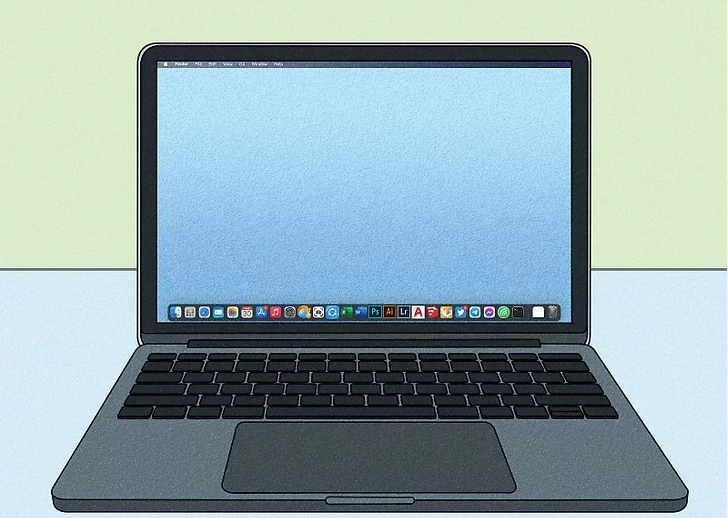
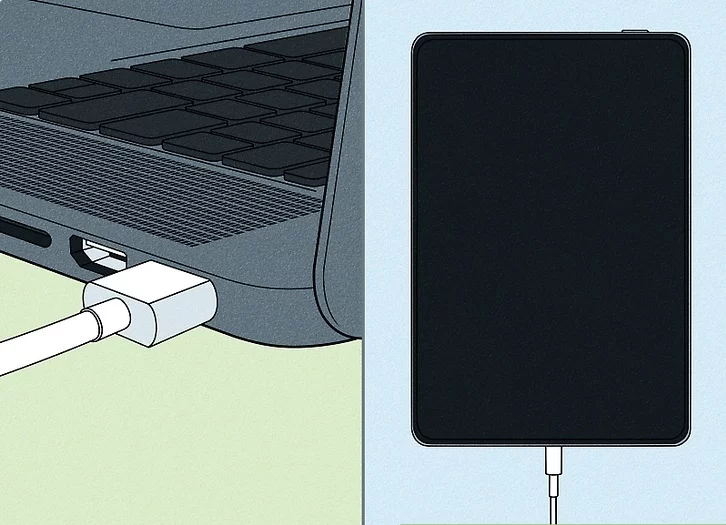
2:Connect your iPad to your computer using a Lightning (or USB-C) cable.
Use a reliable cable to establish a connection. Ensure the port is clean so the data transfer isn’t interrupted during this critical process.
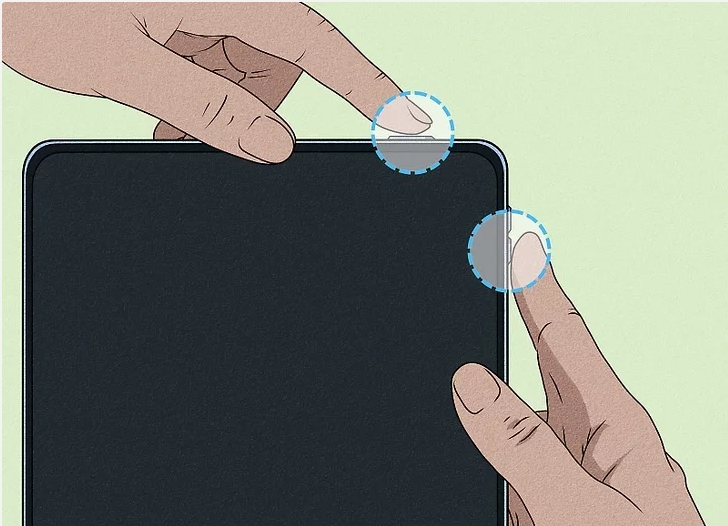
3:Press and hold the top button and one of the volume buttons at the same time
Do this until the power-off slider appears on the screen. This is the manual override to prepare the system for a shutdown.
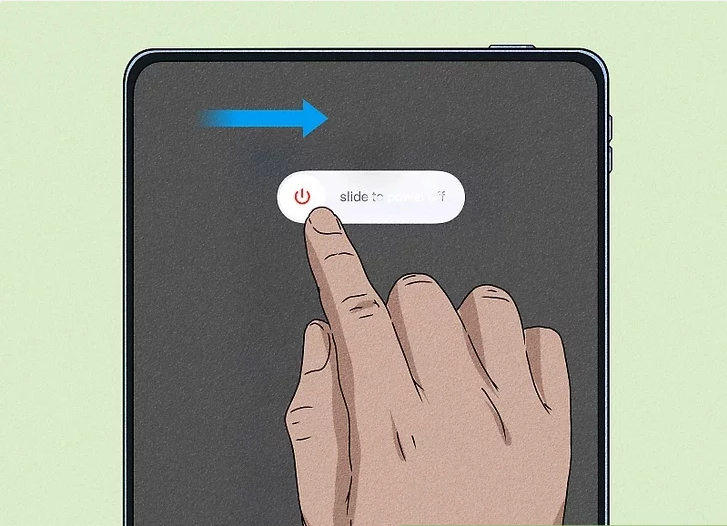
4:Slide the slider to turn off the iPad
Swipe to the right and wait a few moments to ensure the screen is completely black and the device is fully powered down.
5:Press and hold the top button until the recovery mode screen appears
This is the “magic” step. Keep holding the button down—don’t let go when you see the Apple logo. Wait until you see the image of a cable connecting to a laptop.
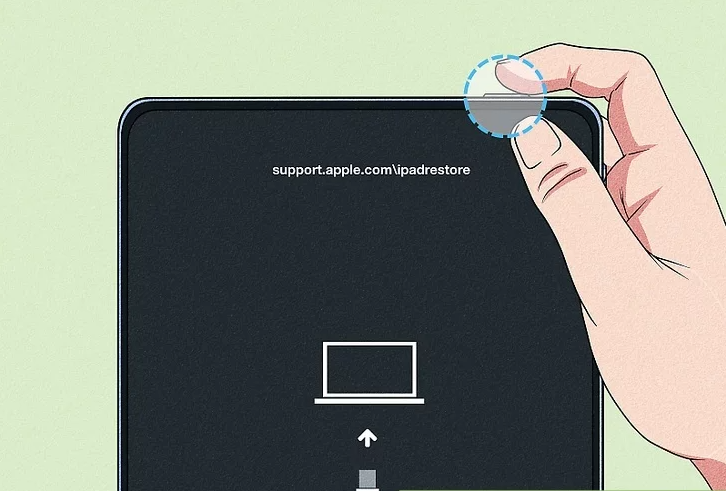
6:Click Restore in iTunes or Finder
Your computer will detect an iPad in trouble. Choose “Restore” (not Update) to factory reset the device and remove the passcode.
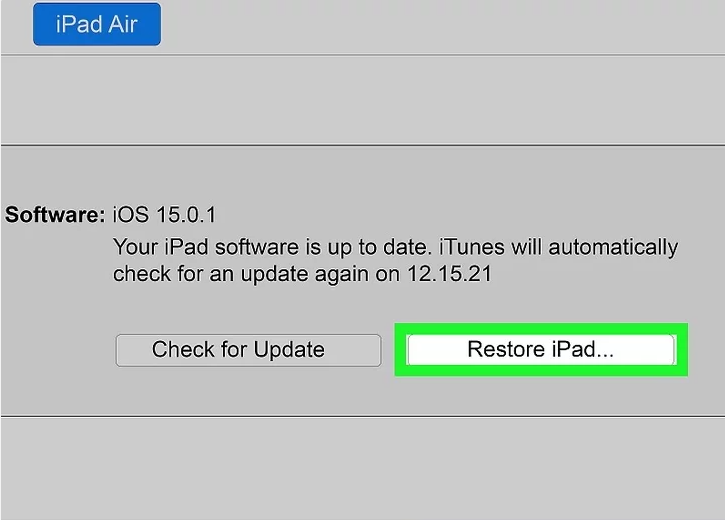
Method 2: Reset using the Find My iPad feature
What if you don’t have a computer nearby? This method is a lifesaver for the mobile warrior. If you previously enabled “Find My” on your device, you can utilize Apple’s cloud infrastructure to remotely wipe the slate clean.
It’s fast, wireless, and incredibly satisfying to execute. This is often the preferred method for users who want to know how to reset an ipad without the password without fumbling with cables.
Step-by-Step Guide:
1:Acesse https://www.icloud.com/find
You can do this from any other device with a web browser—your phone, a friend’s tablet, or a work computer.
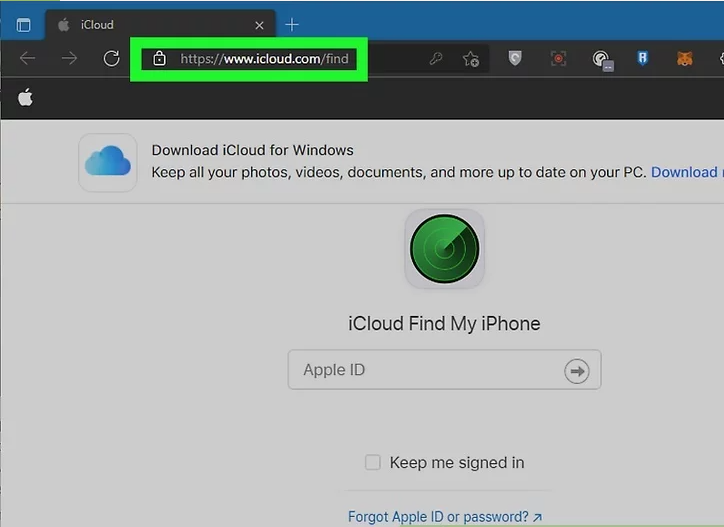
2:Sign in with your Apple ID and password
Enter the credentials associated with the locked iPad. This verifies your identity and grants you administrative control.
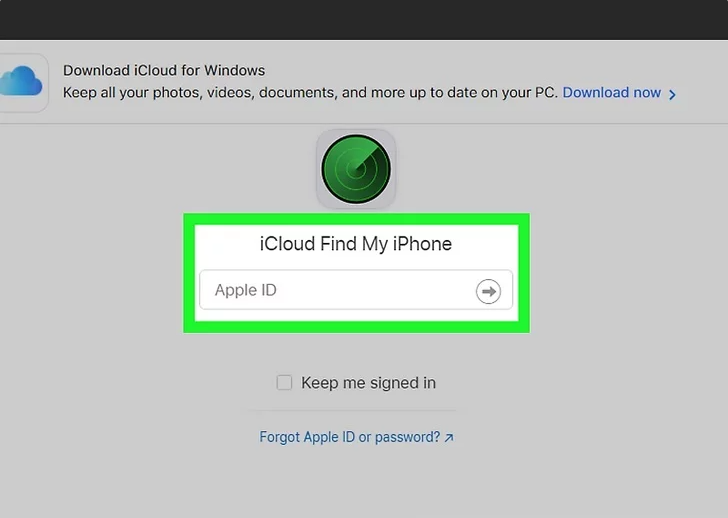
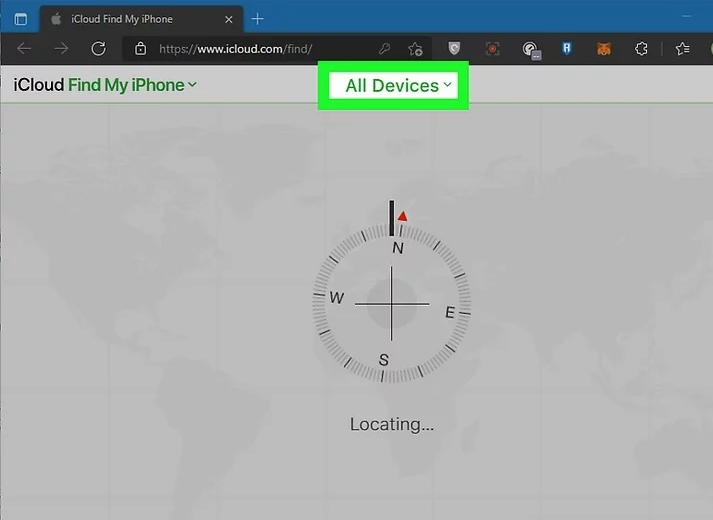
3:Click on All Devices
Located at the top of the map interface, this dropdown menu will show every Apple product linked to your account.
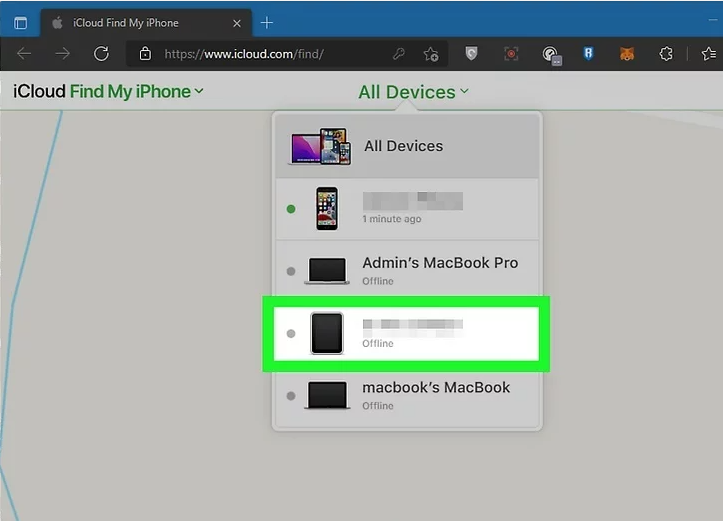
4:Click on your iPad
Select the specific device that is currently locked. You will see its current status and location on the map.
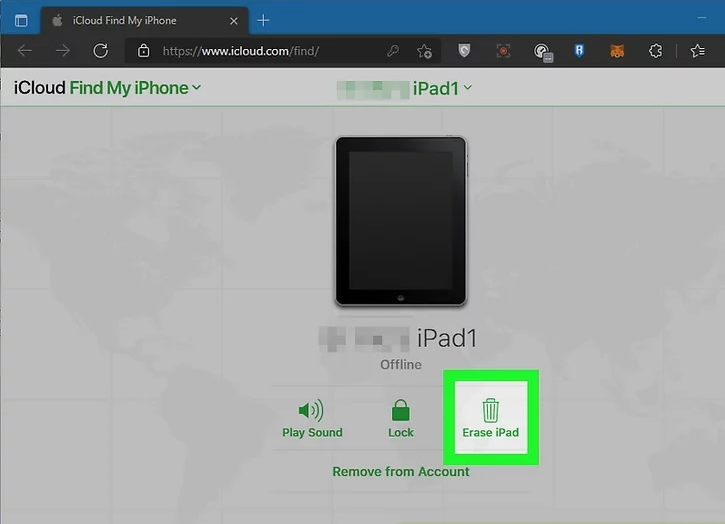
5:Click on Erase iPad
Select the trash can icon or the “Erase” option. A warning will appear telling you that this will delete all data.
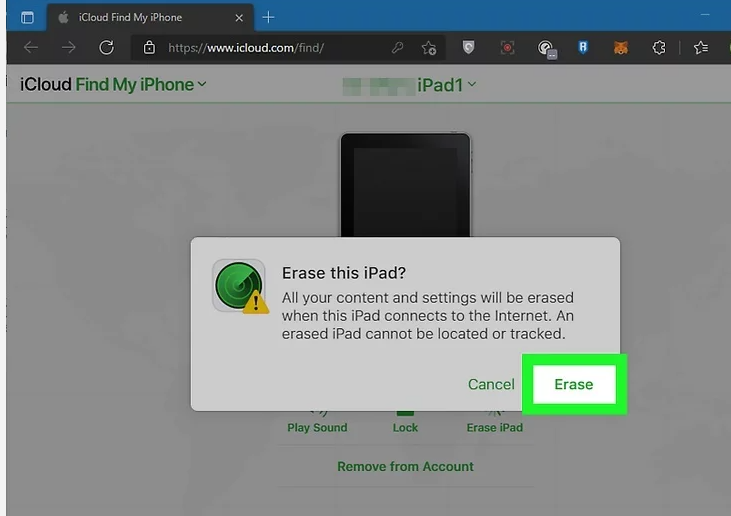
6:Click Delete to confirm
Confirm your choice. The signal will be sent wirelessly to your iPad (if connected to Wi-Fi), initiating a full factory reset immediately.
7:Sign in to your iPad with your Apple ID
Once the iPad restarts, it will be like new. Log in with your original Apple ID to bypass the Activation Lock and start setting it up again.
Conclusion: A Fresh Start for Your iPad
There is a unique kind of relief that washes over you when that Apple logo finally lights up, signaling a successful reset. It’s not just about fixing a gadget; it’s about reclaiming your connection to the world.
By following these steps, you haven’t just unlocked a piece of glass and aluminum—you’ve proven that you are in control of your technology, not the other way around.
Now that your iPad is ready for action, take a moment to set a passcode you’ll remember—or better yet, set up Touch ID or Face ID immediately.
The digital world is moving fast, and now you’re back in the driver’s seat, ready to explore, create, and connect without barriers. Go ahead, download that app, finish that book, or start that project. Your clean slate is waiting.
Frequently Asked Questions (FAQ)
1:Is force restart the same as hard reset?
No, they are different beasts entirely. A force restart (or hard reboot) simply cuts power to the hardware to restart the device if it’s frozen; it does not delete your data. A hard reset usually refers to a factory reset, which wipes the device clean, deleting all data, apps, and settings to return it to its original state.
2:How to hard reset Apple?
To perform a hard reset (factory reset) on most Apple mobile devices, go to Settings > General > Transfer or Reset [Device] > Erase All Content and Settings. If the device is locked or disabled, you must use the Recovery Mode method via a computer or iCloud as described in the article above.
3:How do I wipe a stolen iPad?
If your iPad is stolen, speed is key. Log in to iCloud.com/find, select the device from the list, and click Erase iPad. This remotely wipes all data to protect your privacy. If the device is offline, the erase will begin the moment it connects to the internet.
4:How to remove previous owner Apple ID without password?
This is known as the “Activation Lock.” If you bought a used iPad, the best method is to contact the seller and ask them to remove the device from their iCloud account remotely. Without the previous owner’s help, this is extremely difficult. You may need to provide original proof of purchase to Apple Support to request an unlock, as there is no simple software bypass for this security feature.
5:How to reset an iPad after it’s locked?
Once an iPad is locked due to too many incorrect attempts, the only way to reset it is to put it into Recovery Mode (connecting it to a computer with iTunes/Finder) or wipe it remotely via iCloud. This removes the lock but also erases the data.
6:Does the iPad have a factory reset?
Yes. You can access it through the Settings menu under “General.” However, if you are locked out, the “factory reset” is performed externally using a computer or iCloud to wipe the operating system and reinstall a fresh version.
7:How do you do a hard reset?
If you mean a force restart (to fix a glitch):
- No Home Button: Press Volume Up, then Volume Down, then hold the Top Button until the Apple logo appears.
- With Home Button: Hold the Home and Top buttons together until the logo appears.
If you mean a factory reset (to wipe data), navigate to Settings > General > Transfer or Reset iPad > Erase All Content and Settings.
8:How to put an iPad in recovery mode without password?
You do not need a password to enter Recovery Mode; you need physical buttons. Turn off the iPad.
- For Face ID models: Hold the Top button while connecting the cable to the computer.
- For Home button models: Hold the Home button while connecting the cable.
Keep holding until you see the recovery screen (a cable pointing to a laptop).
9:How do you hard reset an iPad?
As mentioned, if you are looking to wipe the device to sell it or fix errors, use the Erase All Content and Settings option in the Settings menu. If the iPad is disabled, use the Method 1 or 2 outlined in the blog post above to reset it via a computer.
10:Can you factory reset a disabled iPad without a computer?
Yes, in two ways.
- iCloud: Use another device to access “Find My” and erase the iPad remotely.
- Security Lockout Screen: On iPads running iPadOS 15.2 or later, after several failed attempts, an “Erase iPad” option may appear at the bottom of the screen. You will need to enter your Apple ID password to proceed.
11:How long does it take to reset a locked iPad?
The actual reset process takes about 10 to 15 minutes. However, if you are restoring via a computer, iTunes/Finder must download the iPadOS software first. Depending on your internet speed, this download can take anywhere from 15 minutes to an hour.
12:How to factory reset iPad without iTunes or passcode?
If you don’t have iTunes and don’t know the passcode, your best option is the Find My (iCloud) method. As long as the iPad is connected to Wi-Fi or cellular data, you can trigger a wipe from any web browser on any device.
13:What happens after 10 failed passcode attempts on an iPad?
By default, the iPad will become “Disabled” or display “iPad Unavailable,” requiring a connection to iTunes to reset. However, if the “Erase Data” security feature was previously enabled in settings, the iPad will automatically wipe itself completely after the 10th failed attempt to protect your data.
14:What if I forgot my lock screen password?
If you have forgotten the passcode, there is no way to retrieve it or bypass it to save your current data (unless you have a backup). You must erase the device using Recovery Mode or iCloud to remove the old passcode and set up the iPad as new.